Cable or Wi-Fi, at a glance
You plugged the cable in, but you are still on Wi-Fi — and nothing on screen tells you. Konechi keeps the connection you are actually using visible in your menu bar.
Download — free
macOS 14 or later, Apple silicon

You plugged the cable in, but you are still on Wi-Fi — and nothing on screen tells you. Konechi keeps the connection you are actually using visible in your menu bar.
macOS 14 or later, Apple silicon
On top form with a cable, doing fine on Wi-Fi, out of energy when nothing is connected.
 Wired
Wired Wi-Fi
Wi-Fi Offline
Having a cable in while Wi-Fi is still on is normal, and only one of them is carrying your traffic. Konechi asks the Mac itself which one that is, and her face changes the instant you plug in or pull out.
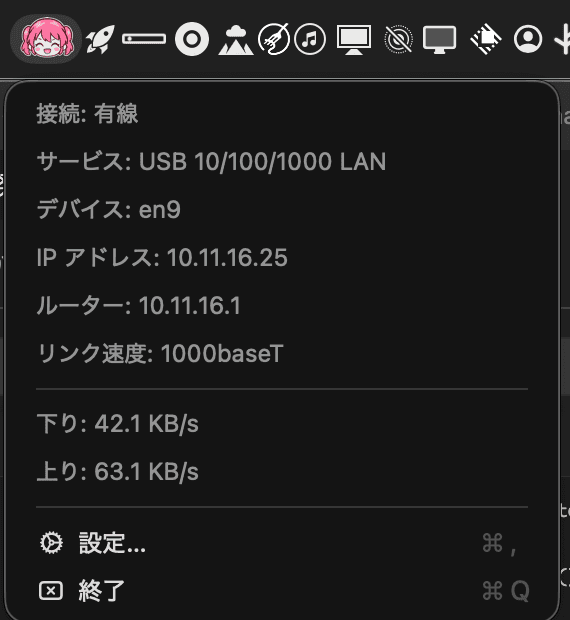
Click the icon and you get the name of what you are connected to, the IP address, how fast the link is, and how much is flowing right now. Useful when something feels slow and you want to know how far it gets.

Turn a VPN on and most apps lose sight of the connection underneath. Konechi adds a padlock and keeps showing whether the cable or Wi-Fi is doing the work behind it.

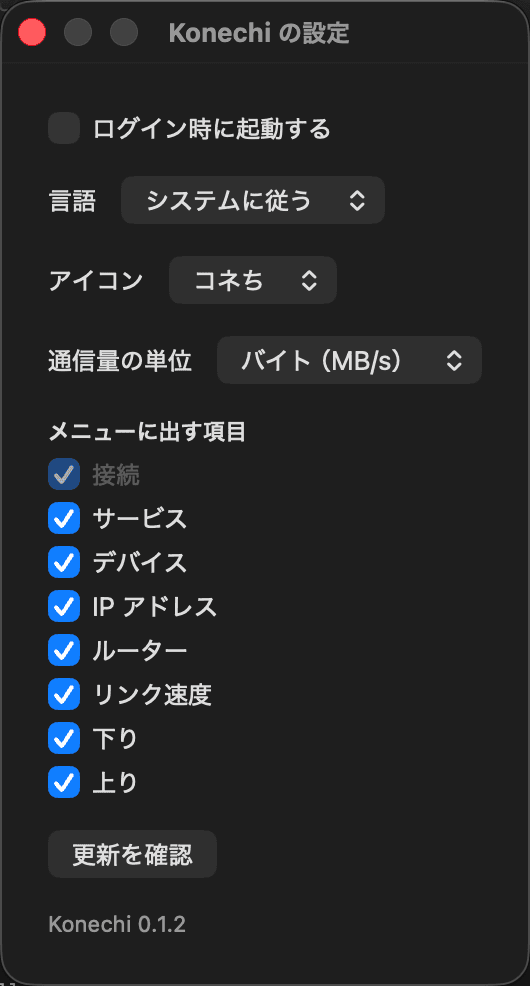
No dock icon, no window, no account. All you decide is whether it starts with your Mac and which rows you want to see.

The author is not a registered Apple developer, so the first launch says the developer cannot be verified. Open System Settings, go to Privacy & Security, and click Open Anyway. After that it behaves like any other app.
Download — free